In today’s fast-paced digital landscape, securing your place on platforms like Google Play Store is vital for app developers. However, with increasing cybersecurity threats, the integrity of app publishers has come under scrutiny. To combat fraudulent activity and maintain a safe ecosystem, Google has implemented a mandatory developer account verification process for all Google Play Console accounts.
This guide offers a detailed, step-by-step approach to help organizations successfully verify their accounts while addressing common challenges and mistakes.
Why Is Account Verification Necessary?
- Enhanced Security: Verification reduces the risk of malicious entities publishing harmful or deceptive apps on the Play Store. This step protects end-users, app developers, and Google’s ecosystem.
- Compliance with Regulations: Global data protection and privacy laws require platforms like Google Play to maintain transparency and accountability in dealing with app publishers.
- Building User Trust: Verified accounts signal to users that the apps come from legitimate sources, increasing download rates and fostering trust.
- Access to Platform Features: Verified developer accounts enjoy access to features like publishing financial or governmental apps and participating in advanced promotional opportunities.
Preparing for the Verification Process
Step-by-Step Process to Verify a Google Play Store Developer Account
Before you start, gather the following information and documents:
- Legal Business Name and Address: Ensure these details match the information registered with your D-U-N-S number and Google Payments Profile.
- D-U-N-S Number: A nine-digit identifier issued by Dun & Bradstreet, required for organizational verification. If you don’t have a D-U-N-S number, apply for one immediately, as the process can take up to 30 days.
- Public Email and Phone Number: These details will be visible on your developer profile and must be verified through OTP (One-Time Password).
- Private Contact Information: A private email and phone number for Google to reach your organization in case of verification or security concerns.
- Authorized Representative’s Personal ID: A government-issued ID, such as a passport or national identity card, belonging to the individual verifying the account.
Step-by-Step Verification Process
Step 2: Select Account Type
For businesses and formal entities. This is required for publishing certain categories of apps, such as financial or governmental apps.
Individual
For sole proprietors without formal business registration. Note that individual accounts have fewer privileges.
⚠️ Important: Account types cannot be changed after verification. Choose carefully.
Step 3: Link a Google Payments Profile
Purpose of the Payments Profile
- Verifies your legal business name and address.
- Does not affect app monetization unless linked for paymentprocessing.
- Select an existing profile or create a new one.
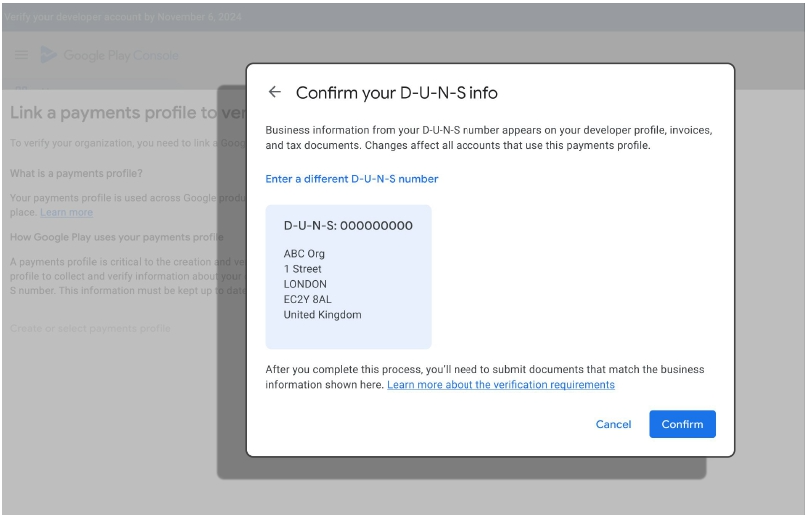
- Ensure the profile’s information matches the details in your D-U-N-S number.
Enter your D-U-N-S number accurately. Incorrect entries have limited retry attempts.
If unsure, consult your finance or legal department to retrieve this number.
- Enter a public-facing phone number and email address that will be displayed on your developer profile.
- Both details must be verified via OTP.
- Provide an internal email and phone number for Google to communicate directly with your organization.
- These details are private and will not be shared publicly.
- Supported IDs include passports, driver’s licenses, or national identity cards.
- The name on the ID must match the name entered on the verification form.
- Use clear, well-lit images or scans of documents. Blurred or altered documents will lead to rejection.
- Ensure all documents are up to date and unexpired.
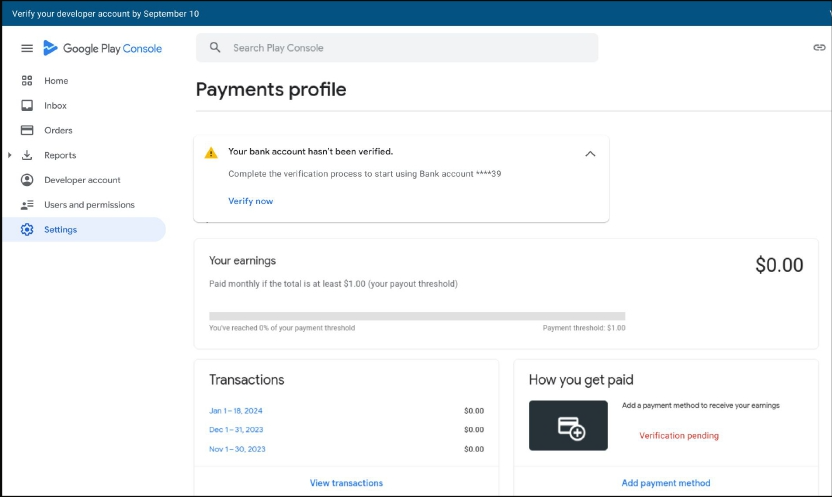
Steps to Verify Your Bank Account
- Confirm a small deposit made by Google (Deposit Challenge).
- Alternatively, upload an official bank statement matching your payments profile details.
A verification pending banner will appear on your Play Console homepage until the process is complete.
Step 7: Review and Confirm
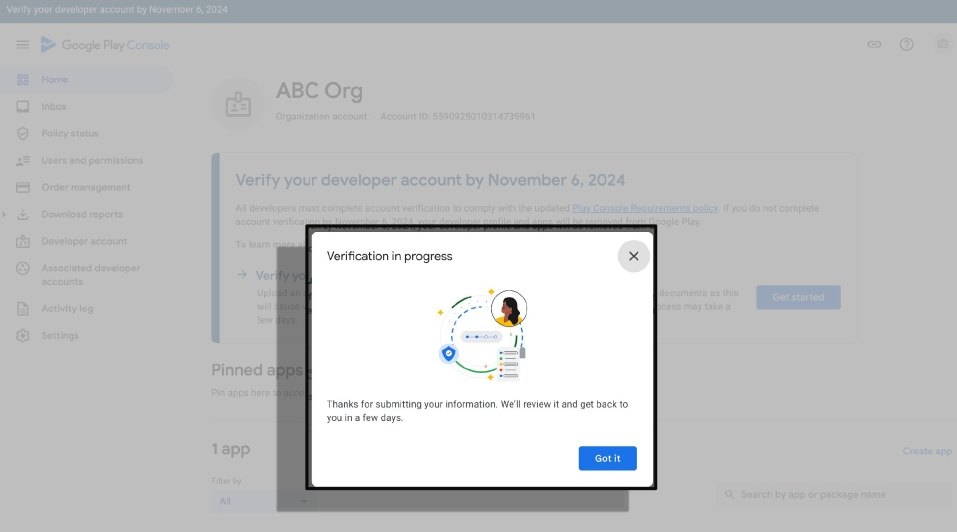
Before submitting your application, thoroughly review the following: Ensure consistency across all provided details (D-U-N-S, Payments Profile, and verification documents). Check for spelling errors or mismatched addresses, which can lead to delays or rejection. Once submitted, Google will review your application. You’ll be notified of the outcome via email.
Troubleshooting Common Issues
- Ensure uploaded documents are from Google’s accepted list.
- Double-check for clarity, completeness, and accuracy.
- Verify that the legal name and address match the D-U-N-S profile exactly.
- If issues persist, contact Dun & Bradstreet to update or retrieve details.
- Try both SMS and call options for OTP.
- Contact Google support if technical issues prevent successful verification.
Apply for a one-time extension directly in the Play Console if you’re unable to meet the deadline.
Benefits of Completing Verification
Verified accounts ensure your apps remain available on the platform, avoiding suspension.
User Confidence
Users are more likely to download apps from verified developers, boosting downloads and ratings.
Compliance with Platform Policies
Avoid potential legal or regulatory issues by adhering to Google’s verification policies.
Tips for a Smooth Verification Experience
The earlier you begin, the more time you’ll have to resolve unexpected issues.
Be Accurate
Double-check all details for consistency across profiles and documents.
Seek Support When Needed
Google provides extensive resources and customer support to assist developers during verification.
Conclusion
Verifying your Google Play Store developer account is more than a mandatory process—it’s a step towards establishing credibility and trust in a competitive marketplace. By following this detailed guide, organizations can navigate the process with confidence, ensuring compliance and continued access to the world’s largest app ecosystem.
Start your verification journey today and secure your place in the Google Play Store ecosystem!